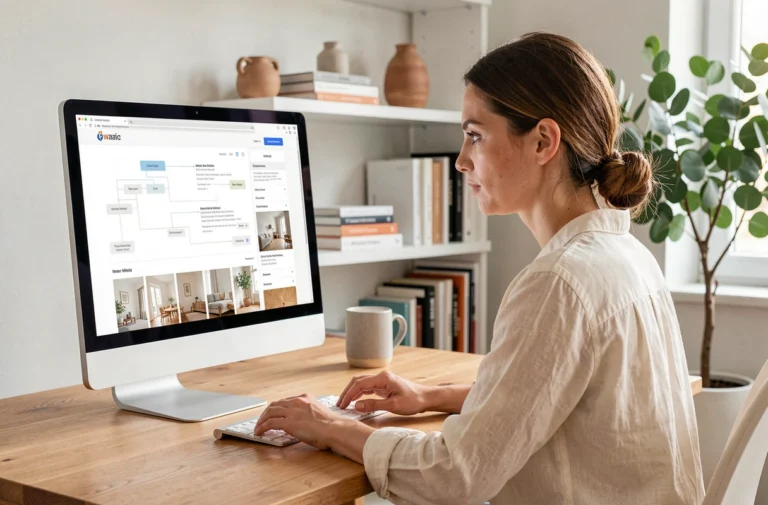
My IntraParis works perfectly from a workstation connected to the internal network of the City of Paris, but remote access poses recurring problems. Missing authorizations, enhanced authentication that blocks mobile connections, variable validation delays depending on the departments: these technical irritants turn the first day of teleworking into a lost day. Here we detail the actual blocking points and the reflexes to implement even before opening your remote session.
Mobile Access to My IntraParis: Diagnosing an Authorization Block
An active IntraParis account internally does not guarantee functional access remotely. Mobile access relies on a distinct authorization layer, processed by a separate administrative circuit. If this authorization has not been validated, the connection fails without an explicit error message: the agent simply sees a loading login screen or a generic authentication denial.
The first reflex is to check if mobile authorization has been activated in your profile. This activation depends on the internal administrative processing within your department, and the timelines are not uniform. An IntraParis account can be operational within a few days, while mobile access sometimes takes significantly longer depending on the workload of the local IT department.
We recommend submitting the mobile access request at least two weeks before the planned first day of teleworking. This anticipation avoids what some agents call the “white day,” an entire day spent in front of an inaccessible screen, with no possibility to check emails or business applications.
Several agents have found practical solutions for My Intra Paris by precisely identifying the step of blockage in the authorization chain, rather than making multiple calls to general support.
Enhanced Authentication IntraParis: Bypassing Recurring Errors
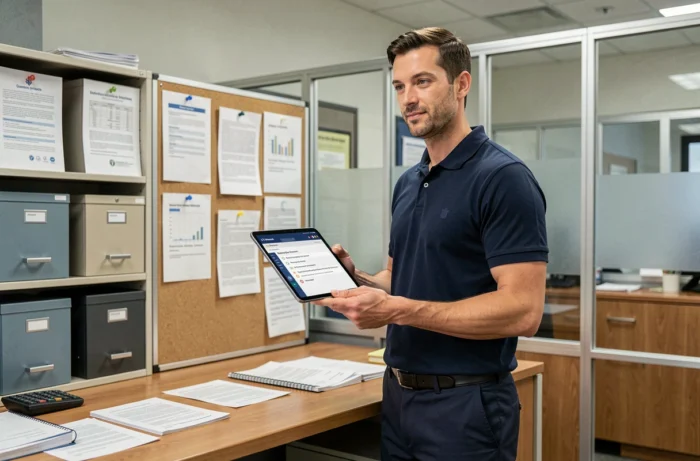
Enhanced authentication is the second major friction point. The digital identity management platform used for My IntraParis imposes a multi-step process: identity verification, entering a new password, and systematic rejection of reused old passwords. This last point regularly blocks agents attempting to reset their access with a variation of a previous password.
During a reset, the system requires a password that has never been used on the account. Any attempt to recycle, even partially, triggers a silent rejection or an uninformative error message. The solution is simple but rarely documented: use a password manager to generate a completely new string for each reset.
Browser and Cache Issues
An outdated browser or a corrupted cache blocks authentication without a clear warning. We observe that the majority of support tickets related to authentication are resolved by clearing the browser cache and using a recent version of Firefox or Chrome.
If the problem persists after these manipulations, the cause is often an expired security certificate on the user workstation. Check that the date and time on your computer are correct: a discrepancy of just a few minutes is enough to invalidate the authentication certificate.
Plan B for Teleworking: Securing Access Before the First Day
Anticipating a mobile access blockage is not excessive caution; it is an operational necessity. The standard troubleshooting circuit (ticket to support, follow-up, intervention from IT) usually takes several business days. Without a plan B, the agent remains cut off from their emails and business tools during this entire period.
Here are the concrete steps to follow before your first day of teleworking:
- Test mobile access from your home at least one week before the scheduled date, by actually logging into your email and a business application, not just the home screen
- Keep a local copy of ongoing work documents on a medium authorized by your department, so you can continue working even without remote access
- Identify the local IT contact in your department: this person handles authorization requests and can expedite a blocked validation, unlike general support
- Set up forwarding of your professional emails to a trusted colleague in case of prolonged blockage, so that no urgent requests go unanswered
IntraParis Nomade on Mobile: A Partial Safety Net
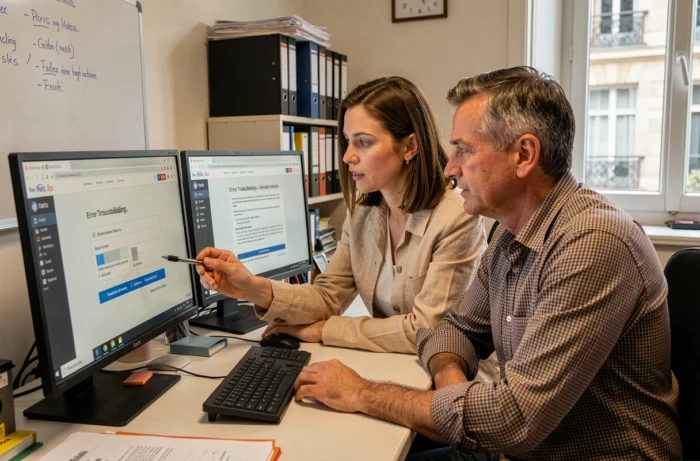
The IntraParis Nomade application on smartphones allows access to emails and certain HR services from a mobile terminal. This application uses a distinct authentication channel from mobile access via computer. In practice, it sometimes happens that an agent blocked on PC can check their emails via the mobile application, and vice versa.
Configuring IntraParis Nomade on your work or personal phone (if authorized by your department) is an effective plan B. Consulting emails and basic documents remains possible even if the classic VPN access from the computer is down.
Password Reset for My IntraParis: The Real Process
Password resets now go through a dedicated digital identity management platform, rather than a simple form. The process unfolds in three stages: identity verification through personal questions or a code sent to the registered phone, creation of a new password compliant with security policy, and then validation that can take from a few minutes to several hours depending on the system load.
The most common pitfall occurs when the agent has not registered a phone number in their profile. Without this number, identity verification cannot be completed online, and the procedure shifts to manual processing by IT, with a significantly longer delay.
We recommend checking now that your phone number is correctly entered in your IntraParis profile. This check takes thirty seconds from an internal workstation and will prevent a complete blockage in case of an urgent remote reset.
The common thread of all these blockages remains the lack of anticipation. Testing each access component separately before needing it (authorization, authentication, mobile application, reset) transforms a crisis situation into a simple administrative formality.