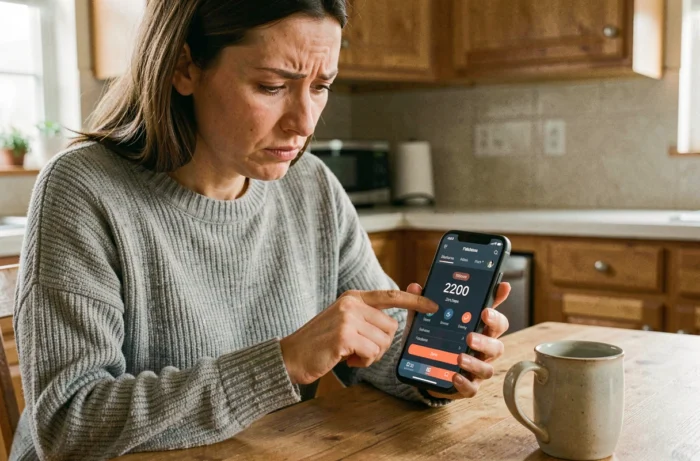
A pedometer that shows zero steps at the end of the day while the phone hasn’t left the pocket: the problem rarely comes from a hardware failure. The counting of steps relies on a physical sensor (accelerometer, sometimes gyroscope) whose data is interpreted by a software layer. When one of these two links is blocked, the counter freezes.
Accelerometer sensor and software processing: understanding the counting chain
The accelerometer sensor detects the micro-oscillations produced by each stride. These raw signals are then filtered by an algorithm integrated into the system (Google Fit on Android, Apple Health on iPhone) that distinguishes a step from a simple arm movement or transport vibration.
When the counter stops working, the failure occurs at one of these two levels: either the sensor no longer sends data (permissions revoked, power-saving mode active), or the software no longer interprets them (desynchronized app, corrupted cache). Identifying the correct level avoids wasting time on unnecessary manipulations.
If doubt persists, a quick test can clarify: open the phone’s native health app, walk about thirty steps, and check if the native counter reacts. If it remains at zero, the problem is hardware-related or linked to system permissions. If it counts normally, it’s the third-party app that is failing. To deepen the diagnosis, understanding why my phone or pedometer no longer counts my steps helps target the exact cause before any manipulation.
Android and iPhone settings that block step counting
The majority of counting failures come from modified system settings, sometimes without any deliberate action from the user (automatic updates, battery profile changes).
Battery saver mode
The battery saver mode cuts background activity of many apps, including those that continuously read the step sensor. On Android, this mode also restricts Google Play services, preventing Google Fit from transmitting its data to third-party apps. On iPhone, battery saver mode limits native counting less, but third-party apps may lose access to the sensor.
Physical activity permissions
On Android (from Android 10), the “Physical activity” permission must be explicitly granted. Without it, no app can read the accelerometer for counting purposes. The path to check: Settings, Apps, select the relevant app, Permissions, then Physical activity.
On iPhone, the equivalent setting is found in Settings, Privacy and Security, Motion and Fitness. Fitness tracking must be enabled there.
Background activity restriction
Some manufacturer overlays (Samsung, Xiaomi, Huawei) apply additional restrictions. A pedometer app may be “asleep” automatically if it hasn’t been opened for several days. The verification goes through:
- Samsung: Settings, Battery and maintenance, Battery, Background usage limits, then remove the app from the list of sleeping apps.
- Xiaomi: Settings, Apps, Manage apps, select the app, Battery saver, then choose “No restrictions”.
- Huawei: Settings, Battery, App launch, then disable automatic management for the relevant app.
Data synchronization between Google Fit, Apple Health, and third-party apps
A pedometer can count steps without ever transmitting them to the app the user checks. This synchronization issue is common with apps like WeWard, Alvarum Go, or other services that rely on Google Fit or Apple Health as an intermediate data source.
The email address of the Google account must be the same in Google Fit and in the third-party app. A different account creates two data silos that do not communicate. To check the link, open Google Fit, go to the Browse tab, then Activity, and check in the settings (three dots in the top right) that the third-party app is indeed in the list of authorized accesses.
On the Apple side, the verification is done in Settings, Health, Data and Devices Access. The third-party app must have read access to step data there.
If synchronization remains blocked after these checks, clearing the cache of Google Fit (Settings, Apps, Google Fit, Storage, Clear cache) often restarts the process. On iPhone, uninstalling and then reinstalling the third-party app forces a new clean permission request.
Under-counting steps: when the problem is not a failure
A phone may display a number of steps significantly lower than reality without any setting being at fault. Research published in 2026 in Sport Sciences for Health shows that the iPhone systematically undercounts steps compared to a watch worn on the wrist, with a negative bias that varies depending on how the phone is carried.
Under-counting increases in several concrete situations:
- Slow walking or dragging steps: the accelerometer detects oscillations that are too weak to be identified as strides by the algorithm.
- Phone placed on a desk or in a bag: steps taken without the phone are simply not recorded.
- Hands occupied (stroller, shopping bags): the phone in the pocket experiences less swinging, which reduces detection.
This phenomenon explains regular discrepancies between the phone’s counter and that of a fitness tracker or smartwatch. The gap does not indicate a malfunction but a physical limitation of the sensor and its placement.
Before looking for a setting to correct, checking if the walking profile has changed recently (returning from an injury, new route, carrying the phone in a different location) helps avoid a false diagnosis. A change in carrying habits is enough to modify the counting without any system parameter having moved.